


If you’ve logged into QuickBooks Online recently and thought, “Wait a second, this looks different,” you’re not alone—and you’re not wrong. Intuit is rolling out a completely redesigned user interface for QuickBooks Online, with plans to fully transition users by October 2025. While the core functionality of QuickBooks remains intact, the way users interact with the platform is getting a significant overhaul.
Whether you’re brand new to QuickBooks or a seasoned business owner managing your own books, this guide breaks down what’s changing, what’s staying the same, and how to make the most of the new QuickBooks Online in 2025.
A Brand-New Look: What’s Different in QuickBooks Online 2025?
The most obvious change? Navigation.
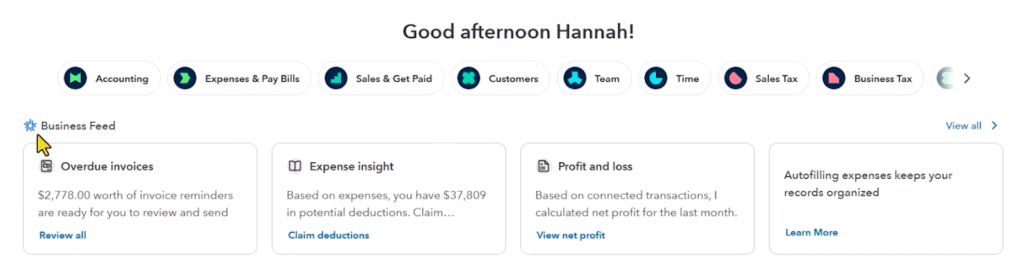
QuickBooks Online has moved from a vertical sidebar navigation to a horizontal top-bar layout. Instead of finding your core functions along the left-hand side, they now live in icons and tabs across the top of the screen. It’s a layout that may feel unfamiliar at first—but once you know where to click, it starts to feel more like the legacy layout.
Here’s what you’ll notice:
- New Navigation Icons: Clickable “apps” across the top replace the old sidebar menu.
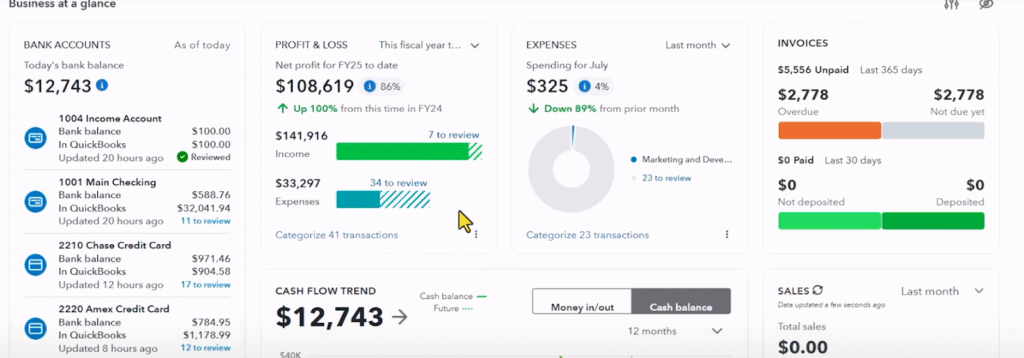
- Dashboard Overhaul: The dashboard still provides a “business-at-a-glance” view, but with more customization options. You can drag, drop, and remove tiles based on what’s most important to you.
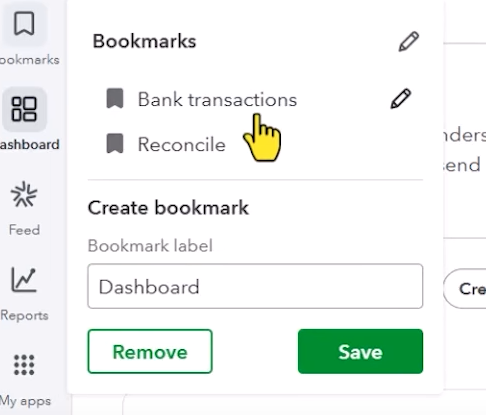
- Bookmark Functionality: Miss the old sidebar? You can now bookmark frequently used tools like bank feeds or reports to create your own custom sidebar.
Functionality: What Stays the Same?
While the interface has changed, the core functionality of QuickBooks Online has not.
As always, you still have the ability to do these core accounting functions:
- Track income and expenses
- Reconcile bank transactions
- Send invoices and manage payments
- Track sales tax
- Run key reports like profit & loss, balance sheet, and AR/AP aging
- Manage contractors and 1099s
- Connect to sales channels like Etsy, Amazon, and Shopify
You’ll also find familiar features like the “Create” button for quick entry and the gear icon in the top-right corner for settings, users, chart of accounts, and custom form styles.
AI Enhancements: Smarter Bookkeeping?
One of the more interesting additions is QuickBooks’ push into AI-powered features.
Look for the blue star icon— {Insert pic) this marks areas where QuickBooks is using artificial intelligence to enhance your workflow. Features include:
- Automated invoice reminders drafted by AI
- Suggestions to improve cash flow
- AI agents that help with expense categorization
Note that these AI tools are still evolving. The new layout with an emphasis on the new AI agents is promising that Intuit has much more to come in the AI department. We will keep an eye out for further developments, so make sure you are SUBSCRIBED to the channel.
Reporting: Still One of QuickBooks’ Strongest Features
QuickBooks Online continues to shine when it comes to reporting. The reporting functionality really hasn’t changed much at all, although there are some view changes we will cover in a future video. Some of our favorite reports are:
- Profit and loss statement
- Balance sheet
- Accounts receivable and accounts payable aging
- Sales by product or customer
- Vendor spend summaries
Remember: your reports are only as accurate as your bookkeeping. Make sure transactions are properly categorized and that vendors and customers are consistently tracked.
Pricing: How to Get the Best Deal on QuckBooks Online
Now let’s talk about savings. If you’re ready to get started with QuickBooks Online, don’t pay full price.
Here’s the best deal available:
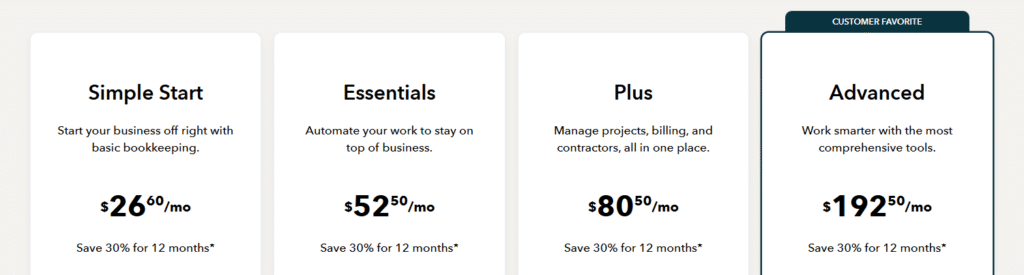
- 30-day free trial
- 30% off for your first year (note that if you do not have an active credit card in your account profile when the trial ends, your discount will not be applied. Email us at info@financialtechlab.com if you need help with your discount)
Pricing as of August 2025 (subject to change):
To lock in this pricing, use this link: financialtechlab.com/qbo
This is the most competitive offer you’ll find—and yes, using our link helps support the channel! We appreciate your support!
Should You Be Worried About the Change?
In short: No.
Yes, the interface looks different. But if you’re familiar with the old QuickBooks, it’s just a matter of reorienting yourself. All the important features you’ve been using in QBO are still there—you simply need to click in different places to find them.
And if you’re new to QuickBooks? Even better. You’re learning the latest version from the start, with no habits to unlearn.
Final Thoughts
QuickBooks Online is evolving, and while the 2025 interface update may be frustrating to seasoned users, the core tools that small business owners rely on are still intact—and even getting smarter with AI.
If you’re ready to dive in, take advantage of the 30% discount and free trial using this link: financialtechlab.com/qbo
Want more tutorials? Keep an eye out for upcoming videos that go deeper into the new bank feed, reporting, and more. Have questions or want something specific covered? Drop them in the comments on the video or reach out directly—we’re here to help make your financial tech work for you.
Affiliate Disclaimer: This article contains affiliate links that support the creator at no additional cost to you. This is not a sponsored post. We only recommend tools we trust and use ourselves.